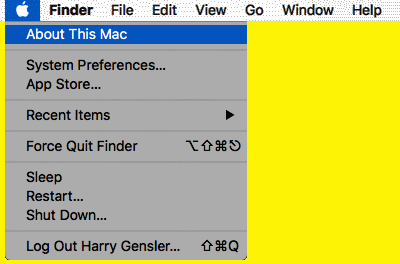
(Step 3 - gatekeeper) If your OS is 10.7.5 or above, you may have to disable gatekeeper to allow other programs to run. Go to SYSTEM PREFERENCES (SETTINGS) under the apple menu) and change your SECURITY AND PRIVACY (under GENERAL) setting to allow applications downloaded from ANYWHERE (if you have this option).
NOTES: If these options are dimmed, then you might have to click at the bottom where it says "Click the lock to make changes"; then it will ask for your password.
(Step 4 - Wine.app) Now you install the free Wine.app program; this uses Wine emulation to run Windows programs on your Mac. Using Safari (I suggest you don't use Chrome), go to Mike Kronenberg's WineBottler download page
http://winebottler.kronenberg.org/downloads and scroll down toward the bottom (
don't click the WineBottler versions - you want Wine.app). If your OS is 10.6 or later, then download
Wine 2.0 or
Wine 1.8.6 (for an older OS, download
Wine 1.4). After this downloads, which may take several minutes, click this file (which will end in
.dmg) from your DOWNLOADS folder; then a box will invite you to install Wine.app by dragging the wine-bottle icon into the Applications folder (you can ignore the readme.rtf file):

If you get no complaint, then Wine.app is installed - and then you should then open the APPLICATIONS folder and double-click the Wine.app program to start it. But you might get a complaint like this:
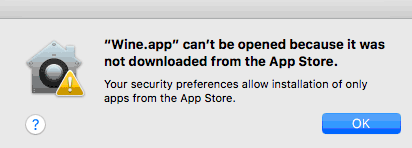
If you get a complaint like this, then first click OK and then return to the SECURITY & PRIVACY box (which you can get by picking SYSTEM PREFERENCES (SETTINGS) under the apple menu); the box may look like this:
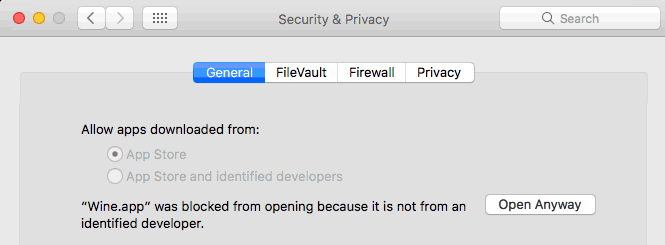
Click OPEN ANYWAY at the bottom. If you're asked the same question again, then click the OPEN button again. Finally, go back to the APPLICATIONS folder and double-click the Wine.app program to start it. You should then see the little wine-glass icon on the menubar at the top of the screen, which indicates that you can now run Windows programs - like LogiCola.

(Step 5 - LogiCola Setup) Using Safari (I suggest you don't use Chrome), go to
http://www.harryhiker.com/lc or here
http://www.harrycola.com/lc to download the normal Windows LogiCola Setup program; click where it says "CLICK HERE." If all goes well, the
lcsetup.exe file will go to your downloads folder. When you click this file, a
LogiCola Setup box pops up:

Toward the bottom, you can check a box to also install the LogiSkor score processing program (for teachers). Toward the top, you can choose to install on a USB FLASH DRIVE (which you can use with various computers, including Windows computers and Macs-with-Wine) or ON MY COMPUTER (which most people will want to do). In the latter case, you'll end up with a LogiCola.exe icon on your desktop (which you can click to start LogiCola), a LogiSkor.exe icon for the scoring program (if you checked the box to install this), and an LC folder for your scores and other supporting files (you must keep the program and folder together, but you can put them together into another subfolder if you'd like):
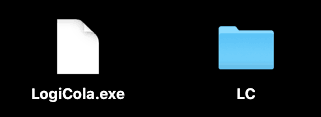
To run LogiCola, just double-click the LogiCola.exe file; be patient, since sometimes it takes many seconds to open. The first time you run the program, you may get this box (where "Wine files" are Windows programs):